Help & SupportHelp CenterVolunteer sign-up
Volunteer sign-up
Some events need a few extra pairs of hands on the day — someone on the registration desk, help with load-in, ushers. Instead of chasing people one at a time, an organizer can open those jobs up and share a single link. Anyone with the link can see what's still open and claim a spot.
This guide has two halves. If someone sent you a link, start at the top. If you're running an event, skip to Opening sign-up.
You got a sign-up link
The link looks something like showmystage.com/su/… and usually arrives by text. Opening it shows you the event, the date, and every job that still needs people.
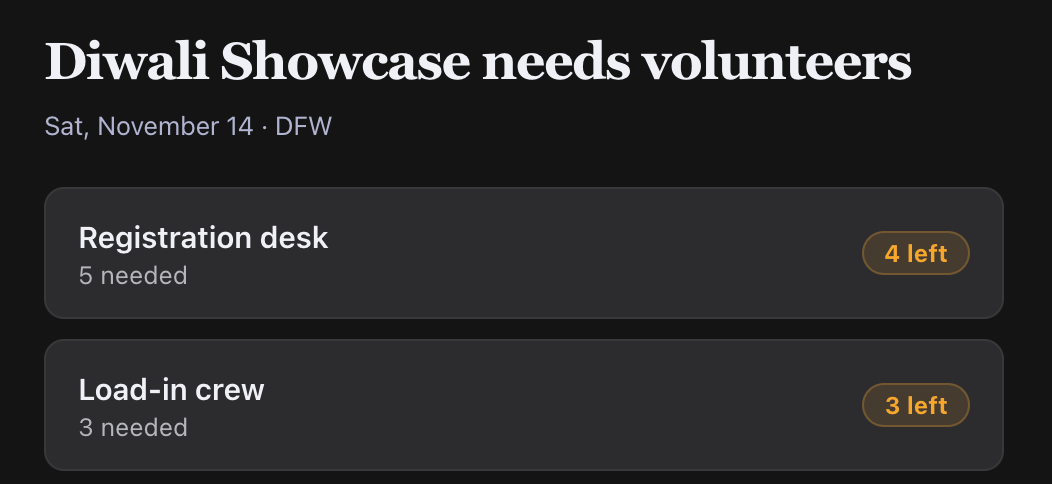
Each job shows how many people are needed and how many spots are left. Pick the one you want.
Claiming a spot
- Choose a job.
- Enter your name and mobile number.
- We text you a 6-digit code — enter it, and the spot is yours.
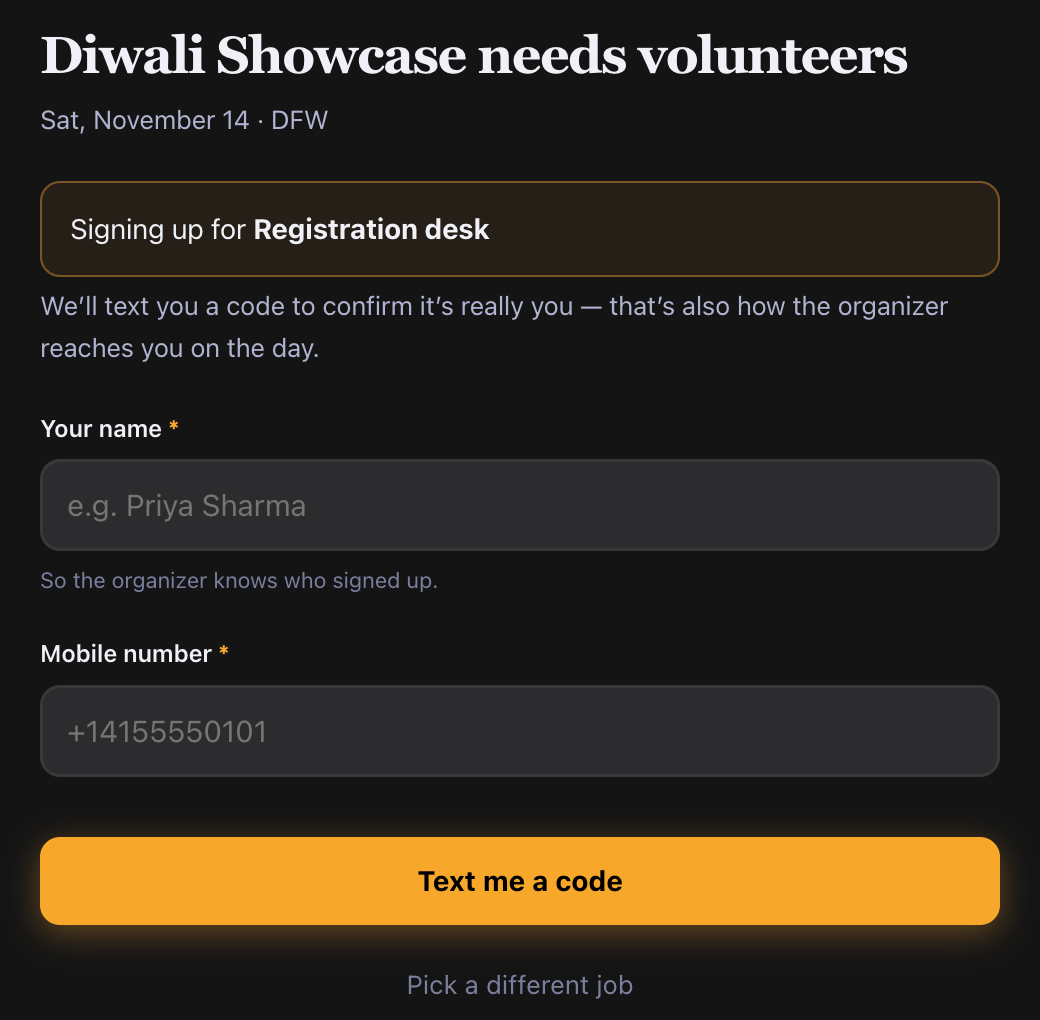
That's the whole thing. No password, and no profile to fill in. Your number is how the organizer reaches you on the day, and how we send you a reminder before it.
What happens next
- The job appears on your own event page, along with the call time and venue.
- You'll get a reminder as the date gets close.
- You can take more than one job at the same event — up to five.
- Changed your mind? Open the event and give the spot back, so someone else can take it.
If the spot fills while you're deciding
Popular jobs go fast. If someone claims the last spot a moment before you do, we'll say so and show you what's still open rather than leaving you stuck — you can pick another job right there.
A few things worth knowing
- Signing up isn't the same as joining the event's group chat. You're on the crew, not in the organizer's conversation. If they want you in the chat, they'll add you.
- The organizer only ever sees the last four digits of your number until you're on their crew.
- Links can be replaced. If an organizer creates a new link, older ones stop working. Ask them for the current one.
Opening sign-up (organizers)
There are two ways to get crew, and they're for different situations:
| You want | Use |
|---|---|
| Specific people — you know exactly who | Invite by phone, on the Crew view. See Event Tasks. |
| Whoever's free — "I need 5 people at the desk" | Open sign-up, described below. |
They work side by side. You can invite three people you're counting on and open the rest to anyone.
Opening one job
Any task on your Production board can be opened for sign-up. Expand the task and turn on Volunteer sign-up at the bottom of the editor.
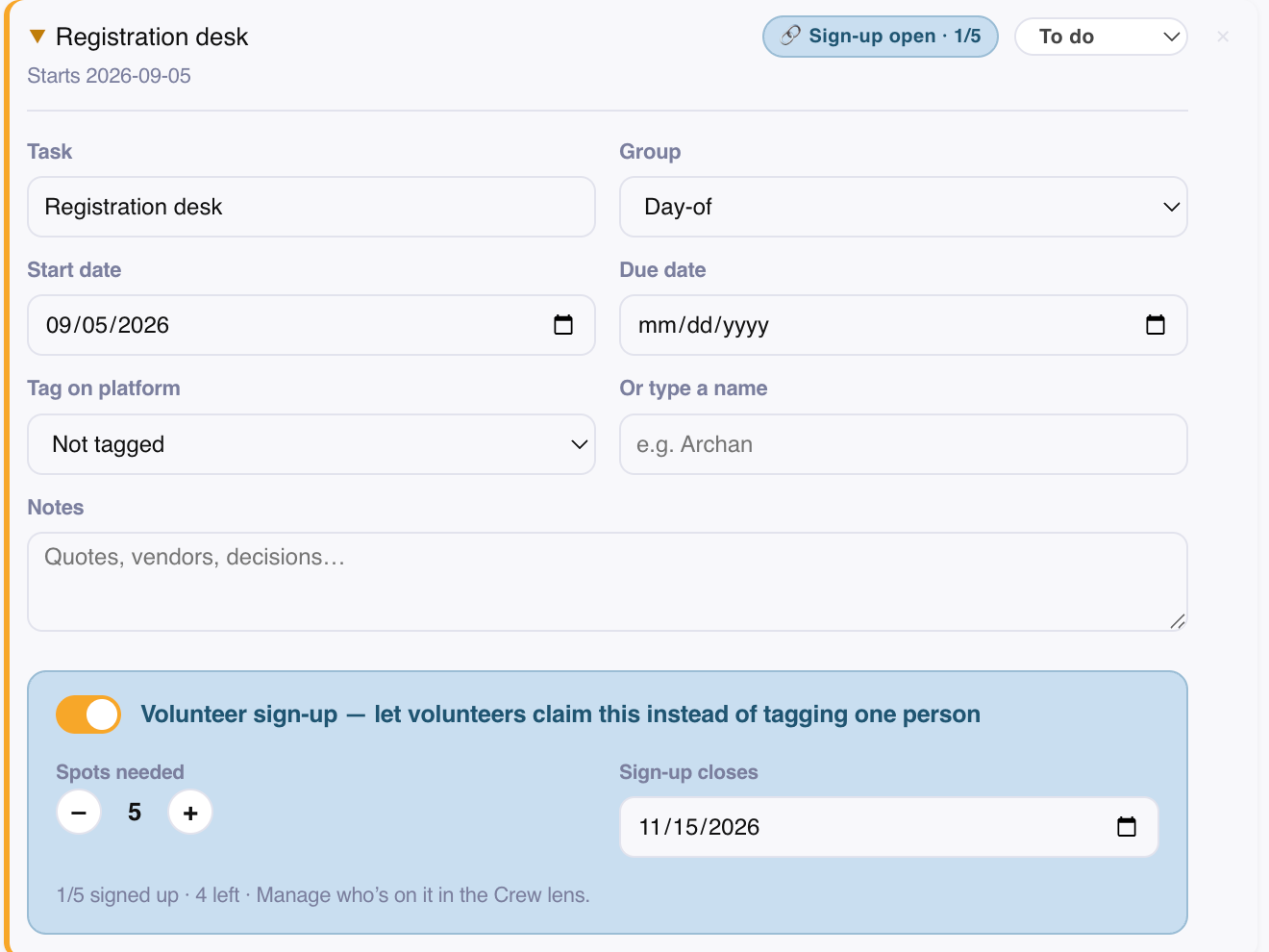
Set how many people you need and, if you like, when sign-up should close. That's it — the job is now claimable by anyone with your link.
Opening several at once, and telling people
To open a few jobs together and let people know in one go, choose Open sign-up at the top of the Production tab.
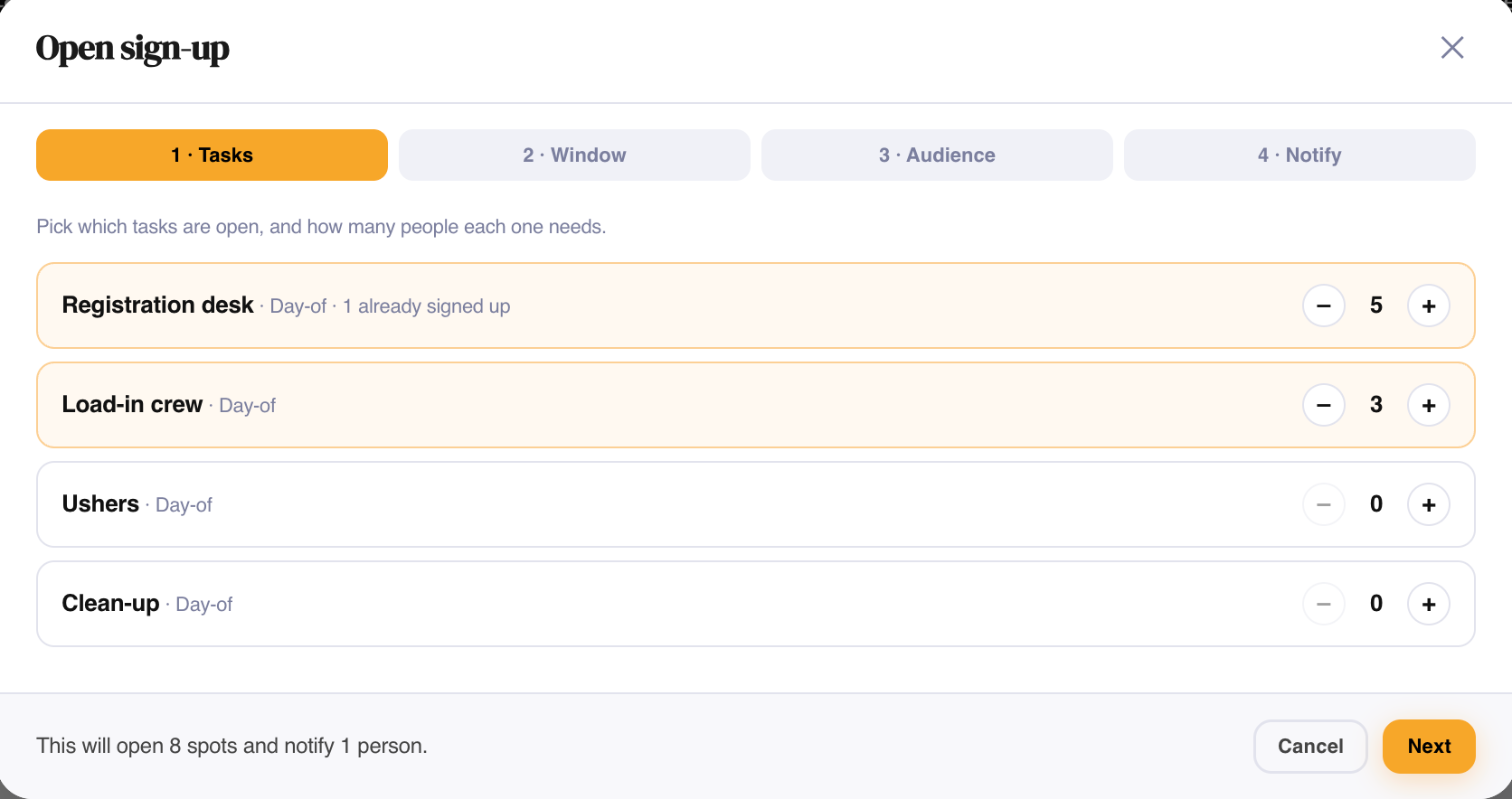
It walks through four steps:
- Tasks — pick the jobs and how many people each needs. The number is the choice; leave a job at zero and it stays closed.
- Window — when sign-up should stop.
- Audience — paste phone numbers to text, and copy the shareable link.
- Notify — see exactly what your text, email, and in-app message will say before anything sends.
The bar along the bottom tells you the size of what you're about to do — "This will open 7 spots and notify 12 people" — on every step, not just the last one. Nothing sends until you press the final button.
Sharing the link
One link covers the whole event and shows everything currently open. Share it however you like — a WhatsApp group, a printed QR code, a newsletter.
If it's been shared too widely, choose New link on the Crew view. The old link stops working immediately. People you invited by phone are unaffected.
Managing your crew
The Crew view shows how each job is filling up.
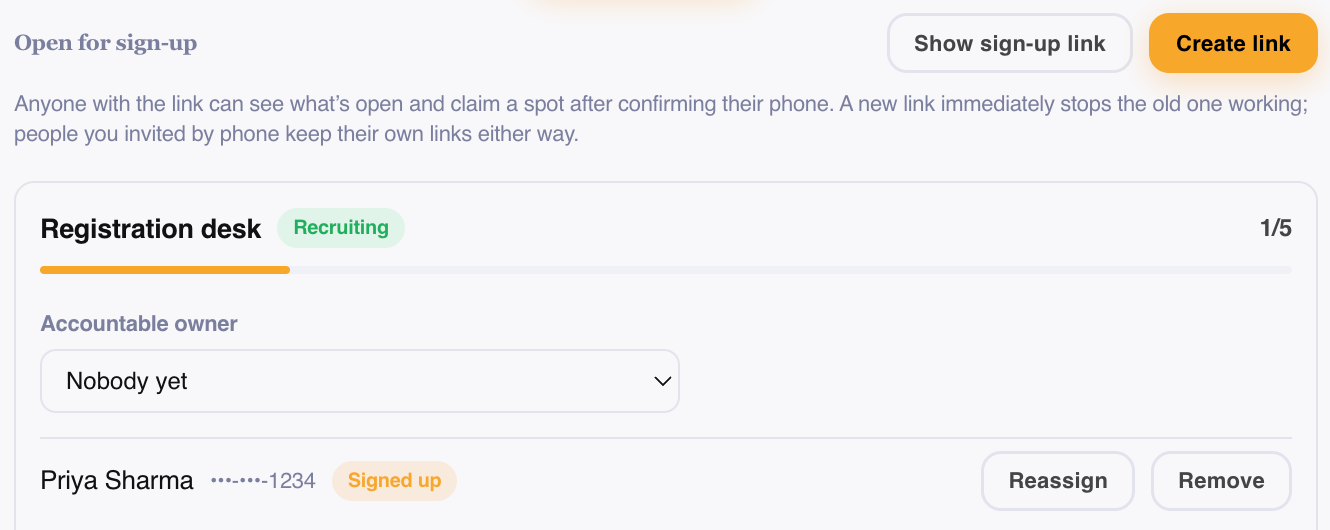
For each person you can:
- Reassign — move their spot to another confirmed volunteer. Both people are told.
- Remove — take them off the job. You can note why, and the spot immediately becomes available again for someone else.
You'll also see how your last send went — "39 texted, 12 emailed, 40 in-app" — so you know it actually reached people.
Someone signed up ≠ someone's accountable
These are deliberately separate:
- Signed up is who's turning up to do the work. A job can have five.
- Accountable owner is the one person answerable for the job getting done. There's only ever one, and it can be someone who never signed up — a coordinator, or you.
Opening a job for sign-up doesn't take away your ability to name an owner. You can set one from the task itself or from the Crew view, before or after anyone claims a spot.
When sign-up closes
If you don't pick a date, sign-up closes at the end of your event's date, in the event's own timezone — so someone can still step in on the morning of the show, but it stops once the show is over.
While spots are still open and the closing date is near, we'll nudge you so an unfilled job isn't a surprise on the day. That nudge comes in the app, never as a text.
Frequently asked questions
Do volunteers need an account? No. They enter a name and mobile number and confirm a texted code. No password, no profile.
Can one person take several jobs? Yes, up to five at one event.
What if someone signs up and then can't make it? They can give the spot back from their own event page, or you can remove them from the Crew view. Either way the spot reopens straight away.
Do people who sign up join our group chat? No. A sign-up link is meant to be forwarded, so whoever arrives on it hasn't been chosen by you. Add them to the chat yourself if you want them there.
Can I see volunteers' phone numbers? You see the last four digits. That's enough to tell two people apart without handing their number to everyone who can open the event.
Will opening sign-up text people automatically? Only if you ask it to, and only after you've seen the exact message and confirmed how many people it reaches. Sending texts also requires confirming you have permission to text those numbers.
What happens if I delete a task that people signed up for? The job and its sign-ups go with it, and the volunteers aren't told — so we'll warn you first and say how many people are on it.
Can volunteers see each other? No. The sign-up page shows how many spots are left, never who has taken them. Only the organizer sees the roster.